MCP (Model Context Protocol): The USB-C of AI Integrations – Build Your Own AI Tool Server in Python
Learn how to use the Model Context Protocol (MCP), an open standard by Anthropic that connects AI models like Claude to external tools, data, and prompts. Build your own MCP server with Python and integrate it into Claude Desktop with reusable prompts, APIs, and email automation.
Introduction to the Model Context Protocol (MCP) for AI Applications
“MCP is like the USB-C of AI.” – Abdul Wahab, AI Developer
The Model Context Protocol (MCP) is an emerging standard developed by Anthropic that allows developers to connect tools, data, and prompts to AI models in a seamless, reusable way. Whether you’re building a custom LLM app or want to integrate your AI assistant with Slack, Google Drive, or Gmail, MCP offers a universal interface to do so.
In this guide, we’ll break down:
- What MCP is and why it matters
- How MCP works under the hood
- The difference between MCP clients and servers
- How to build your own MCP server using Python
- How to connect it to Claude Desktop
What Is MCP and Why Should You Care?
The Model Context Protocol is an open standard that connects AI applications to tools, context, and resources.
Anthropic compares MCP to USB-C: just like USB-C standardizes how devices connect, MCP standardizes how LLMs access external functionality.
Key Benefits:
- Custom Integrations: Easily connect services like Slack, Google Drive, or databases to your AI apps.
- Portable Toolsets: Build your own AI tools (e.g., prompt templates, utilities) once and use them across different environments like VS Code or Cursor.
- Open Ecosystem: Your app can connect with 3rd-party MCP servers to instantly gain functionality.
How MCP Works: Under the Hood
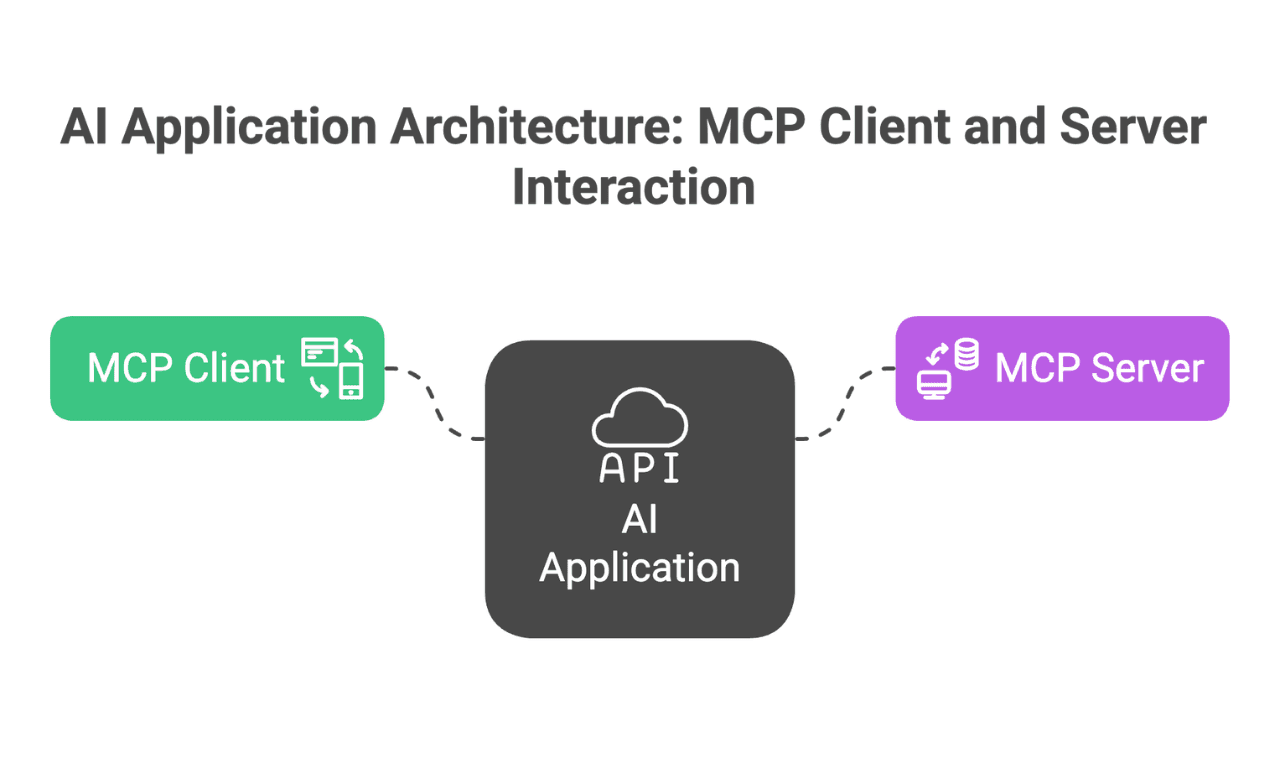
At its core, MCP uses a client-server architecture:
- MCP Client: Built into the AI app (e.g., Claude Desktop) and sends requests like:
- What tools are available?
- What resources or prompts do you offer?
- MCP Server: An independent system that listens and responds with:
- Tools (functions like sending emails or accessing APIs)
- Resources (files, static data, databases)
- Prompts (templated text instructions)

Think of it like a customer (client) ordering coffee from a barista (server): the client asks for something, the server delivers.
MCP Client Responsibilities
Clients are integrated into AI apps and manage:
- Discovering capabilities of connected servers
- Fetching resources like files or datasets
- Executing tools on behalf of the model
- Delivering prompts to the LLM
💡 Good news: you rarely need to build an MCP client from scratch. Most AI tools (like Claude Desktop) already have one built-in.
Building an MCP Server with Python
Let’s get hands-on and build a custom MCP server using Anthropic’s official Python SDK.
Use Case: Ava, Your Admin Assistant
We'll reuse components from a previous project: Ava, an AI assistant that can:
- Draft Gmail messages
- Access contact directories
- Use templated email prompts
Step 1: Install UV (Universal Environment Manager)
UV is a fast Python package manager built in Rust. It also helps manage your environment with a single command.
Install UV:
curl -Ls https://astral.sh/uv/install.sh | sh
Step 2: Set Up Your MCP Server
Install the SDK, then create the server:
from anthropic_mcp import FastMCP

mcp = FastMCP(name="AVA")
Step 3: Add MCP Components
Add Prompts
@mcp.prompt
def ava_prompt(user_name: str, user_title: str) -> str:
    return f"You are Ava, a virtual assistant for {user_name}, a {user_title}. Help with administrative tasks."
Add Resources
@mcp.resource(uri="email-example/intro")
def intro_email_template() -> str:
    with open("email_examples/three-way-intro.md") as file:
        return file.read()
Add Tools
@mcp.tool
def write_email_draft(subject: str, to: str, body: str) -> str:
    # Connect to Gmail API and create draft
    ...
Step 4: Run the MCP Server
if __name__ == "__main__":
    mcp.run(transport="stdio")  # or use HTTP with SSE
Run the server in dev mode:
uv run mcpd dev MCP_server_example.py
Connecting MCP Server to Claude Desktop
Once your server is running, connect it to Claude Desktop for live testing.
Steps:
- Open Claude > Settings > Developer
- Click Edit Config
- Paste in the MCP server schema with the full path to your UV environment
- Restart Claude
Now you’ll see:
- Prompts from Ava
- Email draft tools
- Resources like contact directories
You can trigger tools directly from Claude's UI and see results like draft Gmail messages.
Recap: Why MCP is a Game-Changer
✅ Standardized integration with external tools
✅ Reusable prompt and tool sets across apps
✅ Expandable ecosystem with open-source MCP servers
✅ Easy to build your own server using Python and Anthropic SDK
Final Demo
Once connected:
- Claude can request tools like write_email_draft
- It uses prompts and resources from your server
- You can view drafts created in Gmail
- Bonus: You’ll need to explicitly specify which resource or prompt to use in your input
